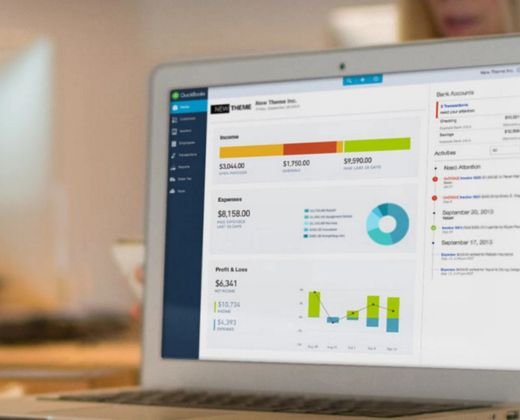
Managing finances is one of the most important parts of running a small business. Without good accounting, even a profitable business can run into cash flow problems or compliance issues. That’s where QuickBooks Setup for Small Businesses comes in. QuickBooks is an easy-to-use accounting platform that helps business owners manage invoices, track expenses, handle payroll, and create financial reports—all in one place. In this guide, we’ll talk about QuickBooks Setup for Small Businesses, best practices for using QuickBooks, tips for beginners, and how QuickBooks Online setup can make accounting tasks easier.
What is QuickBooks?
QuickBooks is a complete accounting software created by Intuit. It helps businesses automate their financial management. From keeping track of sales and expenses to generating reports and preparing taxes, QuickBooks simplifies accounting for small business owners and accountants.
Key Features of QuickBooks for Small Businesses
- Invoice Management: Create and send professional invoices to your clients.
- Expense Tracking: Keep an eye on your business expenses in real time.
- Payroll Management: Automatically handle payroll and tax calculations.
- Financial Reporting: Generate reports like Profit & Loss, Balance Sheet, and Cash Flow Statements.
- Bank Integration: Connect your bank accounts to track transactions accurately.
Whether you’re new to accounting or moving from manual bookkeeping, QuickBooks setup services for small businesses can make the process much easier.
QuickBooks Setup Services for Small Businesses
A good setup is essential to getting the most out of QuickBooks. Many small businesses rely on professional QuickBooks setup services to ensure their accounting is accurate and efficient.
Why Professional Setup Matters
- Error Reduction: Avoid mistakes that could affect the accuracy of your accounting.
- Time-Saving: Professionals can quickly set up accounts, invoices, taxes, and payroll.
- Compliance: Make sure your financial records meet legal and tax requirements.
- Customization: Tailor QuickBooks to fit your business workflow and industry needs.
Step-by-Step QuickBooks Setup
- Choose the Right Version: Decide between QuickBooks Online or QuickBooks Desktop depending on your business needs.
- Set Up Company Information: Enter your business name, address, tax ID, and fiscal year.
- Create Chart of Accounts: Organize your financial accounts, such as income, expenses, assets, and liabilities.
- Connect Bank Accounts: Link your bank accounts and credit cards to automatically import transactions.
- Set Up Invoices and Payments: Customize invoice templates, payment terms, and online payment options.
- Configure Payroll: Set up employee profiles, tax settings, and salary details.
- Integrate Apps: Connect other apps for inventory, CRM, or e-commerce to streamline operations. A proper setup ensures your accounting runs smoothly from the very beginning.
QuickBooks Best Practices for Small Businesses
Following best practices can help you make the most of QuickBooks and support informed financial decisions.
1. Keep Data Organized
- Regularly reconcile bank accounts.
- Categorize expenses correctly.
- Keep personal and business accounts separate.
2. Use Automation
- Automate recurring invoices and bill payments.
- Set up automatic reminders for overdue invoices.
- Use automated reporting for monthly and quarterly analysis.
3. Regularly Back Up Data
Even though QuickBooks Online saves your data in the cloud, backing up your files adds an extra level of security. QuickBooks Desktop users should back up their data regularly on their local devices.
4. Track Income and Expenses Daily
Daily tracking helps prevent backlogs and ensures accurate financial reports. Use the QuickBooks dashboard to monitor your real-time cash flow.
5. Reconcile Accounts Monthly
Reconciling your accounts monthly helps ensure your bank accounts match your QuickBooks records, reducing the risk of errors during tax season.
6. Monitor Financial Reports
- Profit & Loss Statement: Shows your revenue and expenses.
- Balance Sheet: Highlights your assets, liabilities, and equity.
- Cash Flow Statement: Tracks money coming in and going out of your business.
Reviewing these reports regularly helps you make smart business decisions.
QuickBooks Online Setup: A Simple Guide
QuickBooks Online is the cloud-based version of QuickBooks, offering flexibility for small businesses to access their financial data from anywhere.
Benefits of QuickBooks Online
- Access your financial data anytime, anywhere on desktop or mobile.
- Receive automatic software updates and backups.
- Share access with your team for collaboration.
- Integrate with other tools like Shopify, PayPal, and Square.
Steps to Set Up QuickBooks Online
- Sign Up for QuickBooks Online.
- Enter Your Company and Tax Information.
- Customize Your Chart of Accounts.
- Connect Bank Accounts and Credit Cards.
- Set Up Invoices, Payments, and Recurring Transactions.
- Add Users and Assign Roles for your team.
- Integrate with Apps to enhance functionality.
A well-organized QuickBooks Online setup helps save time, reduce errors, and enable data-driven financial decisions for small business owners.
Tips for Beginners Using QuickBooks
For small business owners who are just starting with accounting, QuickBooks can feel a bit confusing at first.
Here are some helpful tips to get you started:
- Take advantage of tutorials and QuickBooks support services to learn the ropes.
- Begin by using the essential features such as invoicing, tracking expenses, and generating reports.
- Customize your invoices with your business logo and branding to make them professional.
- Use tags and categories to make your reporting easier and more organized.
- Review your monthly reports regularly to keep track of your financial health.
Following these tips can make your experience with QuickBooks smoother and help you adopt the software more quickly in your business workflow.
QuickBooks Support Services
Even if you set up QuickBooks correctly, ongoing support is crucial to fix problems, update your settings, and improve your processes.
QuickBooks support services for small businesses include:
- Help with troubleshooting any software errors.
- Updating tax rates and payroll details as needed.
- Assistance with bank reconciliation to ensure accuracy.
- Guidance on how to use reports and analytics effectively.
- Support with integrating QuickBooks with other third-party apps.
Having reliable support ensures your accounting system runs smoothly and minimizes any disruption in your business operations.
Benefits of Using QuickBooks for Small Businesses
- Time-Saving: Automates everyday accounting tasks so you can focus on other areas of your business.
- Accuracy: Helps minimize errors and ensures your financial records stay compliant.
- Financial Insights: Provides valuable data to make better business decisions.
- Scalability: Grows with your business as it expands.
- Cloud Access (Online Version): Allows you to access your financial data from anywhere in real time.
Investing in professional setup and support services helps you make the most of these benefits.
Conclusion
QuickBooks is a strong tool that makes accounting easier for small businesses. Whether you choose QuickBooks Desktop or QuickBooks Online, QuickBooks Setup for Small Businesses help ensure your financial data is accurate, well-organized, and compliant. By following best practices for small businesses, including proper setup, regular reconciliations, automation, and monitoring your data, business owners can save time, decrease errors, and gain valuable insights to help their business grow. For beginners, using QuickBooks support services can help overcome initial challenges and ensure a smooth transition to the software. With a well-organized accounting system, small businesses can concentrate on growth, profitability, and long-term success.